
Fortnite FPS Calculator
Estimate a practical FPS range from your hardware, resolution and preset.
Estimate Fortnite FPS
1080p · medium preset · Balanced estimate
This is a broad range, not a benchmark promise. Cooling, memory, drivers, game patches, map complexity and background apps can all change FPS.
Fortnite visual reference
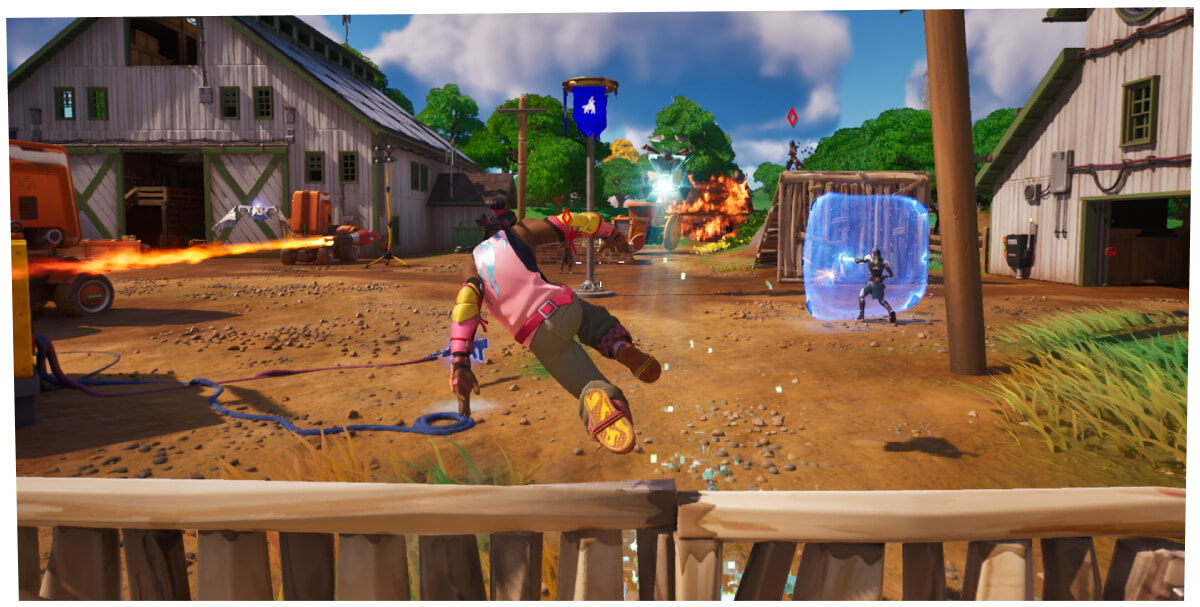
Explore visual context for FPS Calculator. Illustrations are original GamesCalculators artwork unless a separate source is credited.
What the Fortnite FPS Calculator calculates
The Fortnite FPS Calculator estimates a practical frame-rate range from the selected GPU baseline, CPU class, resolution, and graphics preset. It returns a range instead of one benchmark number because Fortnite performance changes across maps, fights, builds, driver versions, and background load.
This is a relative hardware model, not a live benchmark database. It is useful for comparing settings scenarios—such as 1080p Performance Mode versus 1440p High—before changing hardware or display targets.
Use the FPS Calculator
- 1
Choose the closest listed GPU and CPU performance classes.
- 2
Select the resolution you will actually render, not only the monitor’s maximum.
- 3
Choose Performance, Low, Medium, High, or Epic to match the planned preset.
- 4
Read the center estimate and 85–115% range, then validate with an in-game replay or repeatable match scene.
A result you can audit
Each section documents the calculation and the limits that apply to this specific gameplay problem.
How This Fortnite FPS Calculator Works01+
The center estimate multiplies a GPU baseline by a CPU factor, a resolution factor, and a preset factor. The current resolution factors are 1.00 for 1080p, 0.74 for 1440p, and 0.43 for 4K. Preset factors range from 1.40 for Performance Mode through 1.18 Low, 1.00 Medium, 0.78 High, and 0.57 Epic.
The displayed low and high values are 85% and 115% of that center. The band communicates model uncertainty; it is not a percentile guarantee and does not replace a benchmark from the exact CPU, GPU, memory, cooling, and patch.
- GPU baseline anchors the estimate.
- CPU factor represents broad processor-side scaling.
- Resolution and preset factors show the expected direction and size of scenario changes.
Worked Example: changing only resolution02+
Assume the selected GPU baseline and CPU factor produce a 200 FPS center at 1080p Medium. Keeping everything else fixed, 1440p Medium applies the 0.74 resolution factor and estimates 148 FPS. The displayed planning range is about 126 to 170 FPS because 148 × 0.85 = 125.8 and 148 × 1.15 = 170.2.
This comparison is stronger than treating 148 as a promised benchmark: it shows the model’s expected 26% center reduction while acknowledging that a live match can move outside the band.
How to Use the FPS Range03+
Compare the low end with the frame rate you need during demanding fights, not just the high end with your monitor refresh rate. If the target is competitive consistency, test Performance Mode and reduce background load before assuming a GPU upgrade is necessary. Confirm with the same replay, map area, and cap settings so each change is measured against a stable scene.
- Use 1% low and frame-time observations when benchmarking locally.
- Check render resolution, Nanite/Lumen options, and frame cap alongside the named preset.
- Monitor temperatures and clock behavior during a sustained test.
Hardware-Estimate Limitations04+
The calculator groups hardware into broad baselines and does not model every CPU generation, GPU variant, laptop power limit, memory configuration, driver, operating-system task, or Fortnite patch. Battle Royale endgames, Creative maps, shader compilation, and thermal throttling can produce results outside the estimated band.
- A laptop GPU can perform differently from a desktop card with the same family name.
- CPU bottlenecks become more important at high frame rates and low settings.
- The range is not an endorsement or purchase recommendation for specific hardware.
Model factors used by the estimator
Factors are transparent scenario assumptions, not official Epic benchmark data.
| Setting | Factor |
|---|---|
| 1080p / 1440p / 4K | 1.00 / 0.74 / 0.43 |
| Performance / Low | 1.40 / 1.18 |
| Medium / High / Epic | 1.00 / 0.78 / 0.57 |
| Displayed range | Center × 0.85 to center × 1.15 |
Fortnite calculator FAQs
Clear answers about calculations, data, independence, privacy and practical use.
Why does the Fortnite FPS tool show a range?
Live performance varies with the match, map, drivers, cooling, background tasks, and exact hardware. A band is more honest than presenting the model’s center as a guaranteed benchmark.
Is Performance Mode always 40% faster?
No. The 1.40 factor is a broad model assumption. CPU limits, GPU limits, scene complexity, and current Fortnite rendering behavior determine the real gain.
Why can 1080p Low still be CPU-limited?
Lower GPU load can expose the processor’s ability to prepare frames. At high target FPS, CPU generation, memory, and background load may matter more than another preset reduction.
Can this estimate tell me whether to buy a GPU?
It can compare scenarios, but it is not enough for a purchase. Check recent benchmarks for the exact CPU/GPU combination, laptop power limit if relevant, and the current Fortnite version.
How should I verify the result in game?
Use a repeatable replay or scene, keep the frame cap and render resolution fixed, record average FPS plus low-frame behavior, and test long enough for temperatures and clocks to stabilize.